How to Program Your Centsys Gate Motor Remote | D5, D6 & D5 EVO Solar

How to Program Your Centsys Gate Motor Remote | D5, D6 & D5 EVO Solar

Programming Guide

How to Program Your Centsys Gate Motor Remote

Covers: D5 Smart • D6 Smart • D5 EVO Solar • Compatible Remote: Centsys NOVA

Got a new Centsys remote and not sure where to start? This guide walks you through programming your NOVA remote for three of the most popular Centsys sliding gate motors sold in Australia. Whether your receiver has a screen or not, follow the steps below and you'll be up and running in under two minutes.

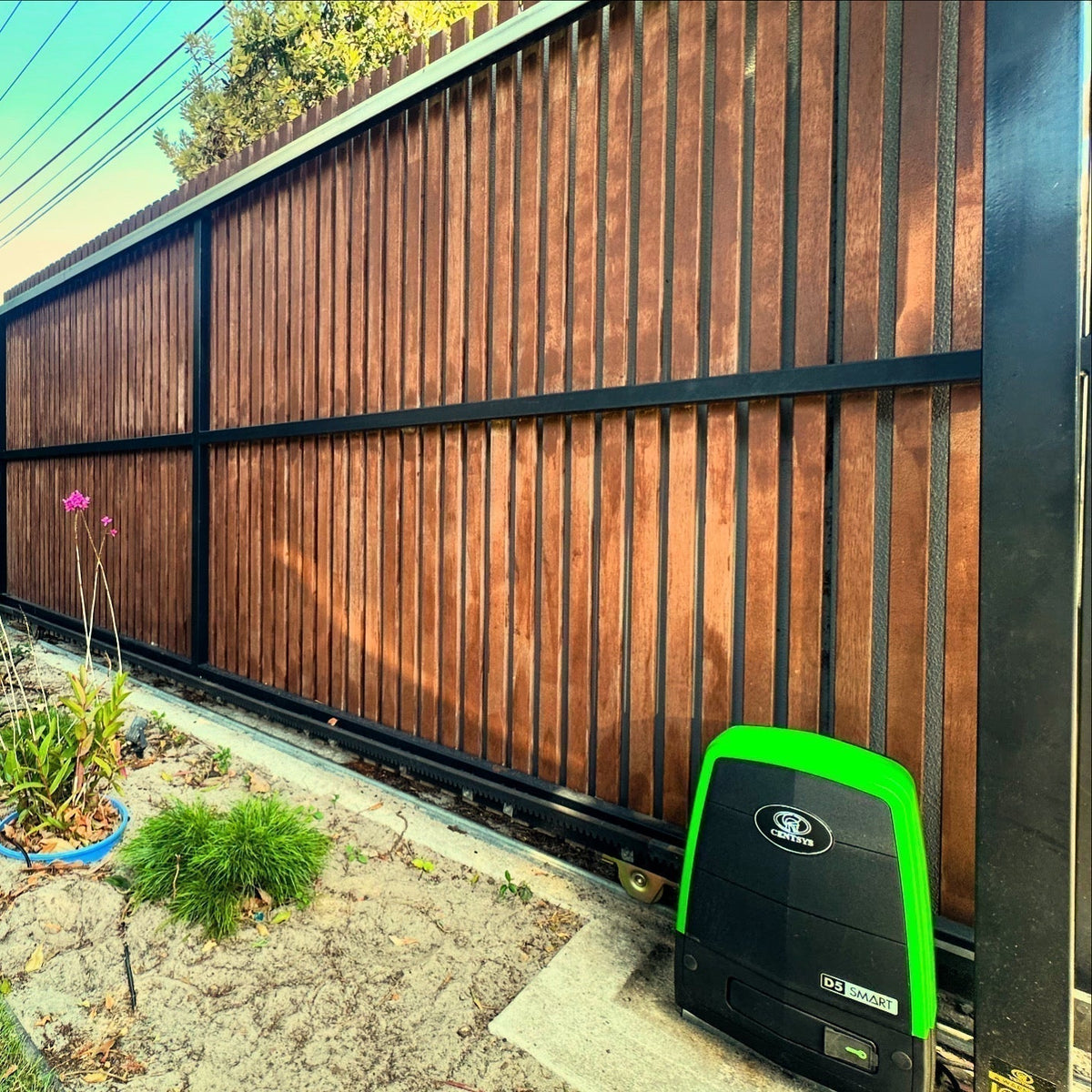
Centsys D5 Smart Sliding Gate Motor

Model: D5-EVO SMART Remote: Centsys NOVA Battery: CR2032
If your receiver does not have a screen
  1. 1Locate the receiver control board inside your gate motor. You will see two buttons labelled SW1 and SW2.
  2. 2Press the button for the output you want to control. Use SW1 for Output 1 or SW2 for Output 2. The LED on the board will begin to flash.
  3. 3Press and release buttons 3 and 4 on your NOVA remote at the same time. The LED will flash rapidly, confirming the remote is being coded in.
  4. 4Wait 15 seconds. The remote will complete programming. Your gate should now respond to that button.
If your receiver has a screen
  1. 1Press and hold the oblong centre button on the control board for approximately 2 seconds. The screen will display Setting Limits.
  2. 2Press the Up Arrow once. The screen will display Remote Controls (Tx).
  3. 3Press the oblong button to confirm. The screen will display Add Remote.
  4. 4Press the oblong button again. The screen will display Select Function. Select Trigger Gate and press the oblong button to confirm.
  5. 5The screen will display Time-bar remote: No. Press the oblong button to confirm.
  6. 6The screen will display Press Remote Button. Press and release the desired button on your NOVA remote.
  7. 7A unique ID will appear on the screen confirming the button has been successfully stored.
  8. 8Press the round button twice to exit programming mode. Your remote is now ready to use.

Centsys D6 Smart Sliding Gate Motor

Model: D6 SMART Remote: Centsys NOVA Battery: CR2032
If your receiver does not have a screen
  1. 1Open the motor housing and locate the receiver control board. Find the two buttons marked SW1 and SW2.
  2. 2Press the button for your chosen output: SW1 controls Output 1, SW2 controls Output 2. The LED will start to flash, indicating it is ready to receive a remote.
  3. 3Simultaneously press and release buttons 3 and 4 on your NOVA remote. A rapid LED flash confirms the signal has been received.
  4. 4Allow 15 seconds for the programming sequence to finalise. The remote is now paired to that output.
If your receiver has a screen
  1. 1Hold the oblong centre button for approximately 2 seconds until the screen shows Setting Limits.
  2. 2Press the Up Arrow once to navigate to Remote Controls (Tx).
  3. 3Press the oblong button to confirm. The screen will display Add Remote.
  4. 4Press the oblong button again. When Select Function appears, choose Trigger Gate and confirm with the oblong button.
  5. 5When Time-bar remote: No appears, press the oblong button to proceed.
  6. 6The screen will prompt Press Remote Button. Press the button on your NOVA remote that you want to assign to this gate.
  7. 7A unique ID on screen confirms the button has been successfully stored.
  8. 8Press the round button twice to exit. Programming is complete.

Centsys D5 EVO Smart Solar Sliding Gate Motor

Model: D5-EVO SMART Remote: Centsys NOVA Battery: CR2032
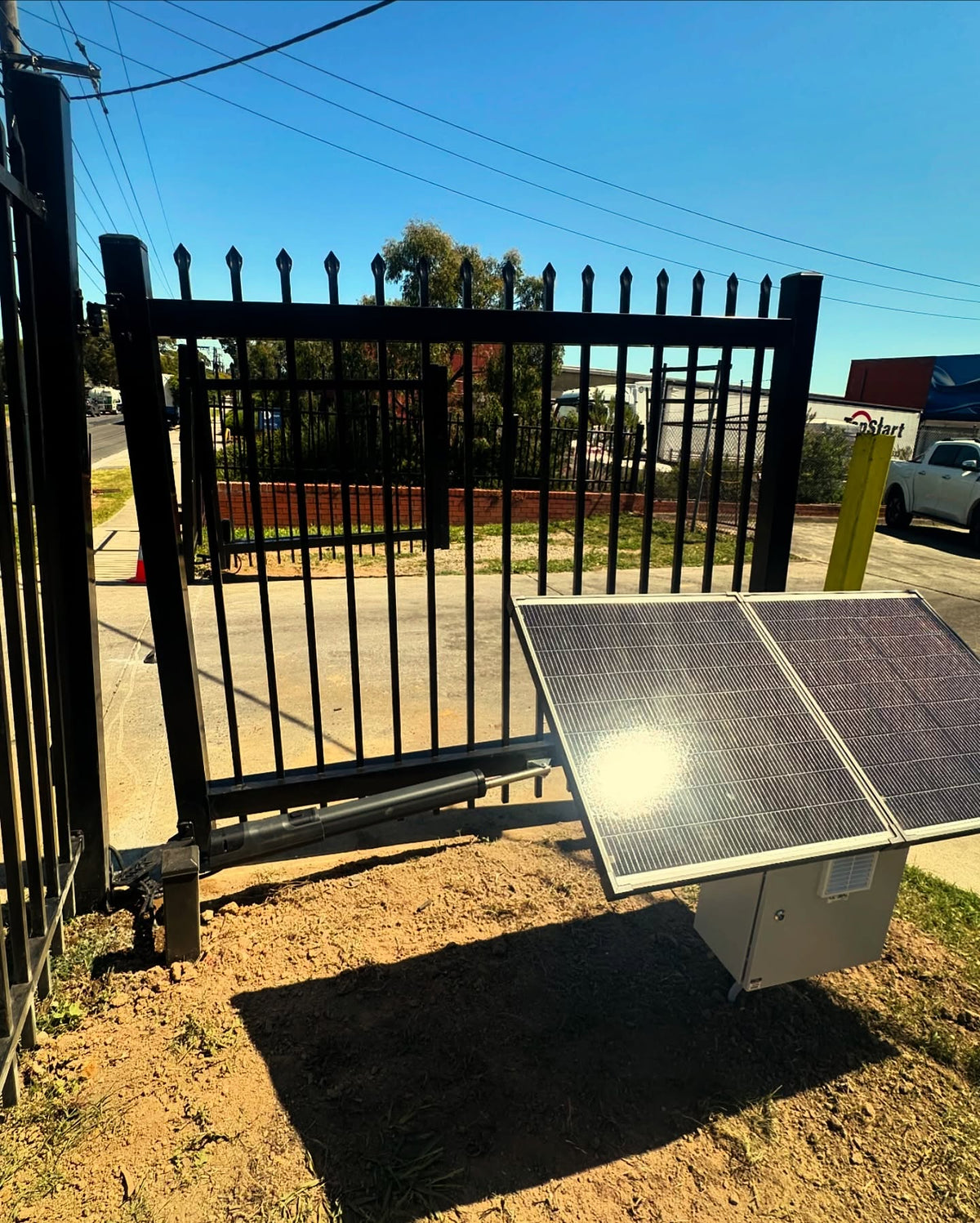
Before you begin Confirm the motor is receiving power from the solar system. If the LED indicators on the control board are not active, allow the solar panel time to recharge the batteries before attempting to program your remote.
If your receiver does not have a screen
  1. 1Locate the receiver control board inside the solar gate motor. On it you will find two outputs labelled SW1 and SW2.
  2. 2Press the button for the output you want to control. SW1 for Output 1 or SW2 for Output 2. The LED will begin flashing.
  3. 3Press and release buttons 3 and 4 on your NOVA remote simultaneously. The LED will flash rapidly, signalling the remote signal has been received and is being stored.
  4. 4Wait 15 seconds for the remote to fully program in. Once complete, test the button to confirm the gate responds.
If your receiver has a screen
  1. 1Press and hold the oblong centre button on the control board for approximately 2 seconds until the screen displays Setting Limits.
  2. 2Press the Up Arrow once. The screen will display Remote Controls (Tx).
  3. 3Press the oblong button to confirm. The screen will display Add Remote.
  4. 4Press the oblong button again. When Select Function appears, select Trigger Gate and press the oblong button to confirm.
  5. 5The screen will display Time-bar remote: No. Press the oblong button to proceed.
  6. 6When the screen shows Press Remote Button, press and release the desired button on your NOVA remote.
  7. 7A unique ID will appear on screen confirming the button has been stored successfully.
  8. 8Press the round button twice to exit programming mode. Your NOVA remote is now paired to the solar gate motor.

Frequently Asked Questions

What remote does the Centsys D5 and D6 use?

Both the D5 Smart and D6 Smart use the Centsys NOVA remote control, which runs on a CR2032 battery. Make sure your remote has a fresh battery before starting the programming process.

How do I know if my Centsys receiver has a screen?

Open the motor housing and look at the control board. If it has a small rectangular display that shows text like "Setting Limits" when you press the centre button, it has a screen. If it only has LEDs and physical buttons with no display, follow the no-screen instructions.

How do I program a Centsys remote without a screen?

Press SW1 or SW2 on the control board until the LED flashes, then simultaneously press buttons 3 and 4 on your NOVA remote. The LED will flash rapidly to confirm the signal was received. Wait 15 seconds for the programming to complete.

Does the D5 EVO Solar need to be powered before programming?

Yes. The motor must have enough charge from the solar panel before you can program the remote. If the LEDs on the control board are not lit, leave the solar panel in sunlight to recharge before proceeding. Attempting to program without adequate power can result in an incomplete setup.

Can I program multiple remotes to the same motor?

Yes. Repeat the programming steps for each additional remote. Each button you program will receive its own unique ID on screen-based receivers, so you can confirm each one was stored correctly.

My remote is not working after programming. What should I check?

First, check the CR2032 battery is fresh and seated correctly. Second, confirm you waited the full 15 seconds (no-screen method) before testing. Third, make sure you pressed buttons 3 and 4 simultaneously, not one after the other. If the gate still does not respond, repeat the process from the beginning.

Need more help?

Have your motor model number and remote model ready before reaching out. Our team can walk you through any programming issue.

Visit Powered Gates Australia

Reading next

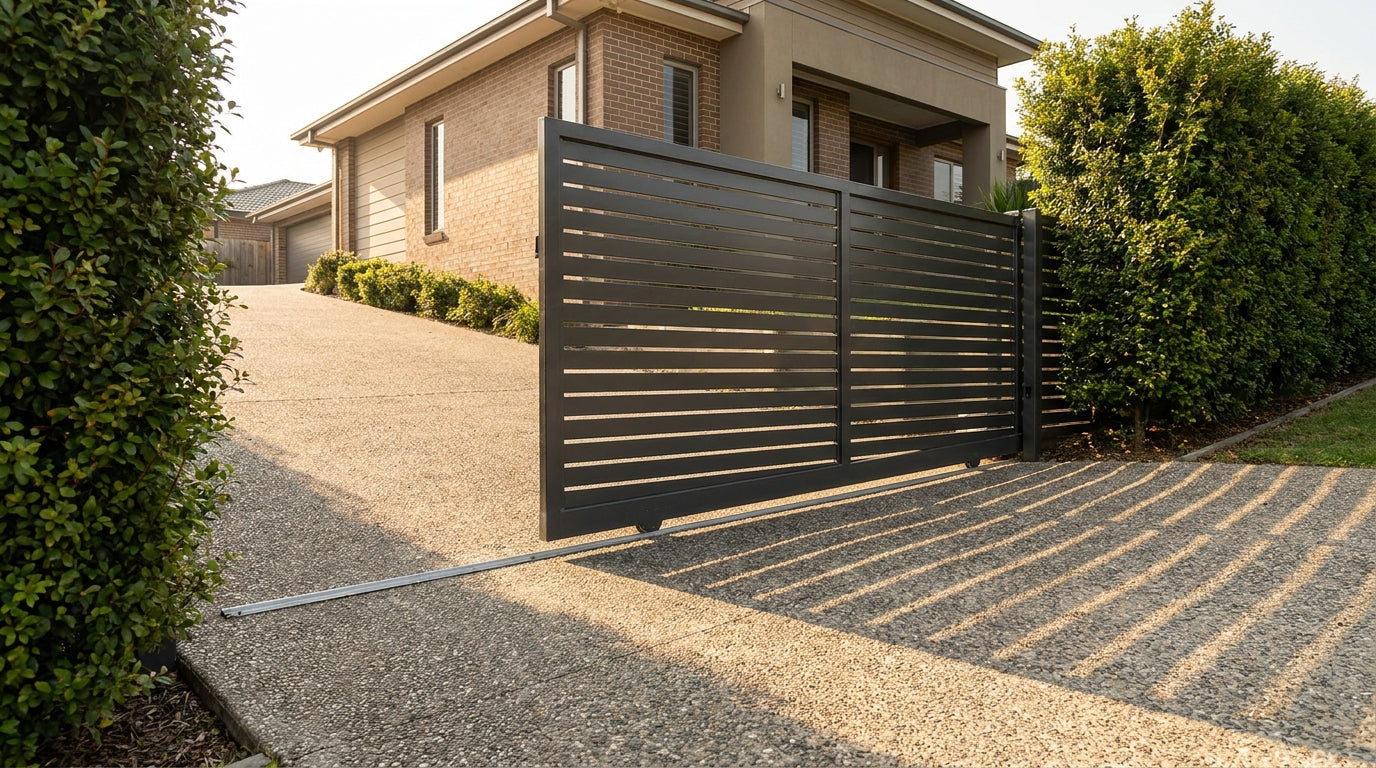
A black sliding gate installed on a sloped residential driveway, partially open on a track system with a modern home visible in the background.
How to Program a Beninca Gate Motor Remote

Leave a comment

All comments are moderated before being published.

This site is protected by hCaptcha and the hCaptcha Privacy Policy and Terms of Service apply.