
How to Program Your Beninca Gate Motor Remote
Programming a Beninca remote is straightforward once you know which method applies to your motor. This guide covers four of the most popular Beninca gate and barrier motors sold in Australia, with separate instructions for first-time setup, adding extra remotes, and fixing pairing issues caused by the wrong encoding mode.
Beninca Bull 600kg Turbo Sliding Gate Motor
-
1Press the
PGbutton on the control board to enter the menu. -
2Use
+or−to scroll through the menu until the display showsRADI. -
3Press
PG. The display will showPP. -
4Press
PGagain. The display will showPUSH. - 5Press the front button on your remote that you want to use to operate the gate.
-
6The display will show
OK, confirming the remote has been stored. -
7Press
+and−simultaneously to exit the menu. Your remote will now work.
- 1Press and hold any two buttons on the remote simultaneously for approximately 20 seconds.
- 2The remote LED will blink continuously while you hold the buttons.
- 3Release once the LED stops blinking. The encoding mode has changed to ARC. Retry the programming steps above from the beginning.
Beninca Tom 30 Swing Gate Motor
-
1Press the
PGbutton on the control board to enter the menu. -
2Use
+or−to scroll until the display showsRADI. -
3Press
PG. The display will showPP. -
4Press
PGagain. The display will showPUSH. - 5Press the front button on your TO.GO remote that you want assigned to this gate.
-
6The display will show
OK, confirming the remote is stored. - 7Repeat steps 4 and 5 for each additional remote you need to pair.
-
8Press
+and−simultaneously to exit. Your remote will now operate the gate.
- 1Press and hold any two buttons on the remote at the same time for approximately 20 seconds.
- 2The remote LED will blink while you hold the buttons down.
- 3Release once the LED stops blinking. The encoding mode has switched. Retry the programming steps above from step 1.
Beninca EVA Boom Gate Barrier
-
1Press the
PGbutton on the control board to enter the menu. -
2Use
+or−to scroll until the display showsRADI. -
3Press
PG. The display will showPP. -
4Press
PGagain. The display will showPUSH. - 5Press the front button on your TO.GO remote that you want to use to raise and lower the boom arm.
-
6The display will show
OK, confirming the remote has been stored successfully. - 7Repeat steps 4 and 5 for each additional remote you need to pair.
-
8Press
+and−simultaneously to exit the menu. Your remote will now control the barrier.
- 1Press and hold any two buttons on the remote simultaneously for approximately 20 seconds.
- 2The remote LED will blink continuously while you hold.
- 3Release once the LED stops blinking. The encoding mode has changed to ARC. Return to the programming steps above and start from step 1.
Beninca Sam Swing Gate Motor
-
1Press the
PGbutton on the control board to enter the menu. -
2Use
+or−to scroll until the display showsRADI. -
3Press
PG. The display will showPP. -
4Press
PGagain. The display will showPUSH. - 5Press the front button on your TO.GO remote you want assigned to this gate.
-
6The display will show
OK, confirming the remote is stored. - 7Repeat steps 4 and 5 for each additional remote.
-
8Press
+and−simultaneously to exit. Your remote will now operate the gate.
- 1Press the hidden key on the back of the remote that is already programmed to the motor.
- 2Within 5 seconds, press the front button on the existing remote that operates the gate. The flashing light on the motor will turn on, indicating it is ready to accept a new remote.
- 3Within 10 seconds, press the hidden key on the back of the new remote you want to add.
- 4Within 5 seconds, press the front button on the new remote for the same channel. The flashing light on the motor will turn off, confirming the new remote has been stored.
- 5The new remote is now paired. Test by pressing the button to confirm the gate responds.
- 1Press and hold any two buttons on the remote simultaneously for approximately 20 seconds.
- 2The remote LED will blink while you hold the buttons down.
- 3Release once the LED stops blinking. The encoding mode has changed to ARC. Retry the programming steps above from the beginning.
Frequently Asked Questions
What remote does the Beninca Bull 600kg Turbo use?
The Bull 600kg Turbo uses the Beninca TO.GO range of remotes, but only in ARC (Advanced Rolling Code) mode. Standard mode remotes will not pair. The battery comes pre-installed in the remote.
What does ARC mode mean and how do I know if my remote is in it?
ARC stands for Advanced Rolling Code. It is a more secure encoding standard required by several Beninca motors. If your remote is in standard mode, it will fail to pair with an ARC-only motor. To switch modes, hold two buttons simultaneously for 20 seconds until the LED stops blinking. You cannot visually confirm the current mode, so if pairing fails, always try the mode switch first.
How do I add a second or third remote after the motor is already set up?
Use the PG button on the control board to navigate to RADI, press PG twice to reach the PUSH prompt, then press the desired button on your new remote. The display will show OK when done. Press + and - simultaneously to exit. This works for all four motors covered in this guide.
Can I add a Beninca remote without going back to the control board?
Yes, but only on the Beninca Sam swing gate motor, and only when the REM logic is set to ON. You use an already-paired remote to activate copy mode, then pair the new remote within a 10-second window. See the Sam section above for the full step-by-step process.
What is the AUTO calibration step on the Bull 600kg Turbo?
After pairing all your remotes during first-time setup, pressing and holding a stored remote button until AUTO appears triggers an automatic calibration run. The gate travels through 3 full movement cycles so the motor can learn the gate's weight, travel distance, and stopping parameters. This only needs to be done once during initial setup. The gate will stop in the open position and display OK when calibration is complete.
My Beninca remote still won't work after following all the steps. What next?
First, confirm the battery is making good contact — even pre-installed batteries can shift during shipping. Second, try the encoding mode change again to rule out a mode mismatch. Third, check that you are pressing the correct hidden key on the back of the remote (not a front button) during the pairing initiation step. If none of these resolve it, contact Powered Gates Australia with your motor model number and remote model ready.
Need more help?
Have your motor model number and remote model ready before reaching out. Our team can walk you through any programming issue.
Visit Powered Gates Australia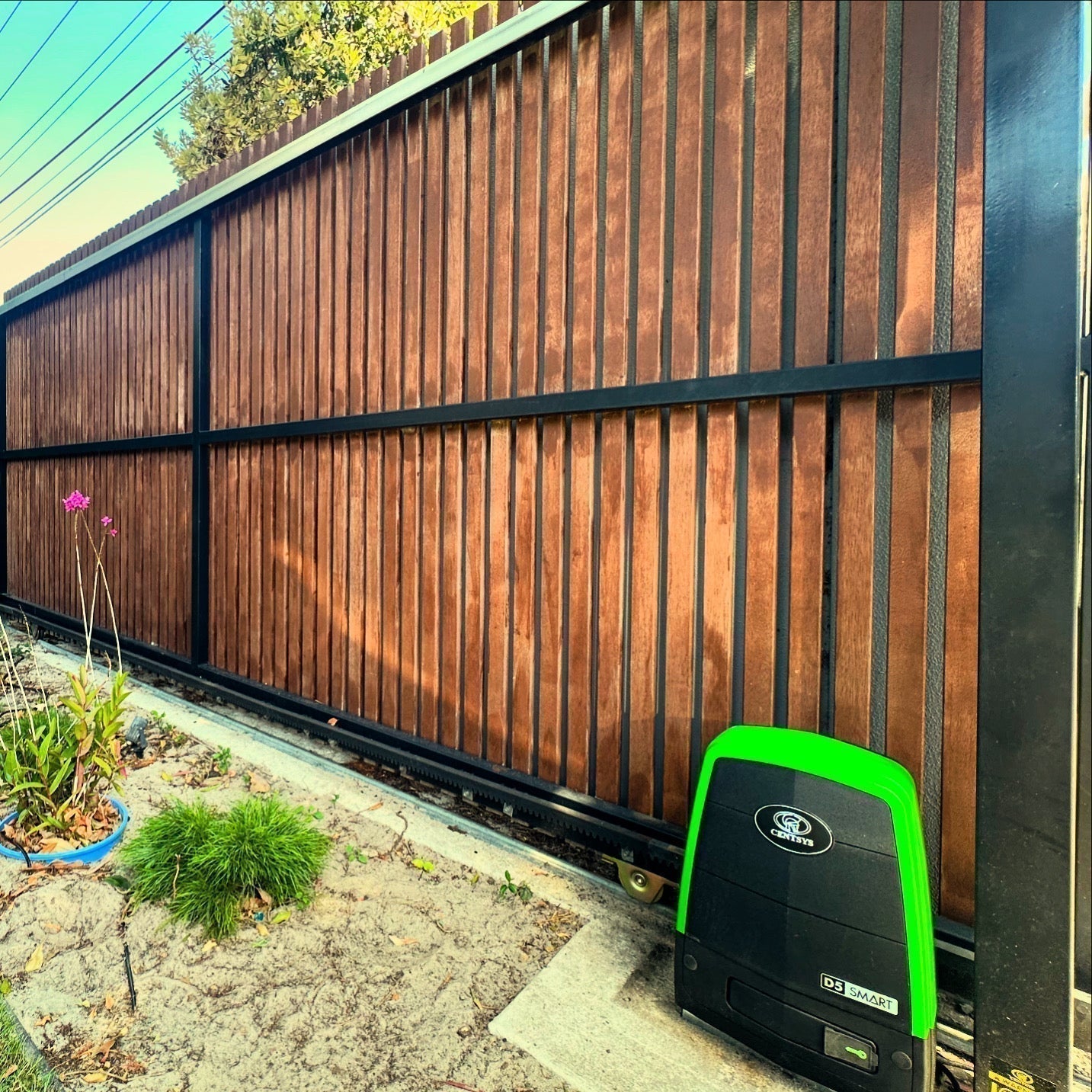


Leave a comment
All comments are moderated before being published.
This site is protected by hCaptcha and the hCaptcha Privacy Policy and Terms of Service apply.